Actions
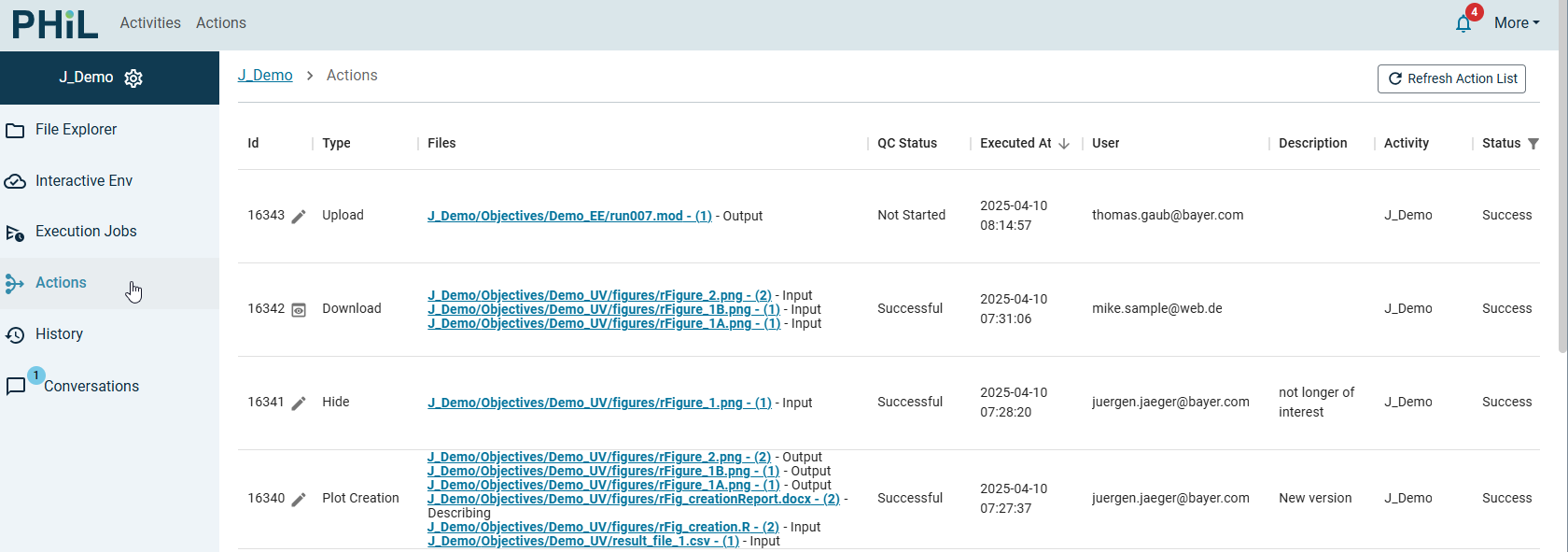
As explained in the chapter "General Concepts", Actions represent everything you do in PHIL to create files (see Actions). So your workflows from the Import of data and Upload of scripts until the creation of a Report or Download of Plots consist of a graph of Actions connected by Files, which are output of one (Creating) Action and input for other (Consuming) Actions.
For an Action are stored a couple of metadata. The most important are:
- Action Type, e.g. "Upload","Rename","Model Execution"
- Input and Output Files
- Timestamp of Execution (Start)
- Executing User
- (Technical) Status (
Pending|Success|Error) - Quality Control Status (
Not Started|Marked|Successful|Failed) - Description - you can use the description when starting some action to make this action findable in future
- Activity, to which the Action belongs
Depending on the Action more metadata are available like e.g. link to job in case of Job Executions, information about source location in case of Import Actions.
If you are interested in Actions related to a specific file (version), you can open the Action Dialog for its Creating Action or Consuming Actions in the corresponding tabs inside the File Properties Dialog - and via the Creating Action item in the file's context menu.
And you can navigate forward and backward in your workflows via the hyperlinks to Creating Action and Consuming Actions and their Input Files and Output Files in the File Properties Dialog.
If you search for a specific Action or want see an overview about Actions you can use two Action lists.
Global Action List
In the top menu bar you find an entry Actions, which displays a list of all Actions executed by yourself in all Activities. Here you can search for instance for actions, which contain the word "Critical" in the description or which have a "Qualitiy Control Status" = "Failed".
Activity Action List
In the side bar you find an entry Actions, which displays a list of all Actions in the current Activity independent of the executing user. Here you can search in the same way as explained above.