Conversations
To communicate about Activity related topics, use the integrated "Conversation tool". You can access it from any view by clicking on the Conversations item on the side bar.
 The little number on the top of the speech bubble indicates the number of open conversations in the seletcted Activitiy.
The main advantages of using Conversations over using Emails are
- The content of Conversations is in the same way restricted as the files content of an Activity;
so in case of restricted Activities for unblinded data you avoid the risk of unvoluntary unblinding. - Files and even actions can be referenced easily in Conversations
and from these files you can open directly the corresponding comments.
Read and write comments
You can select a previously created conversation (Drop down) or create a new one (+ button). Under each conversation, multiple comments can be created
In a conversation, you can:
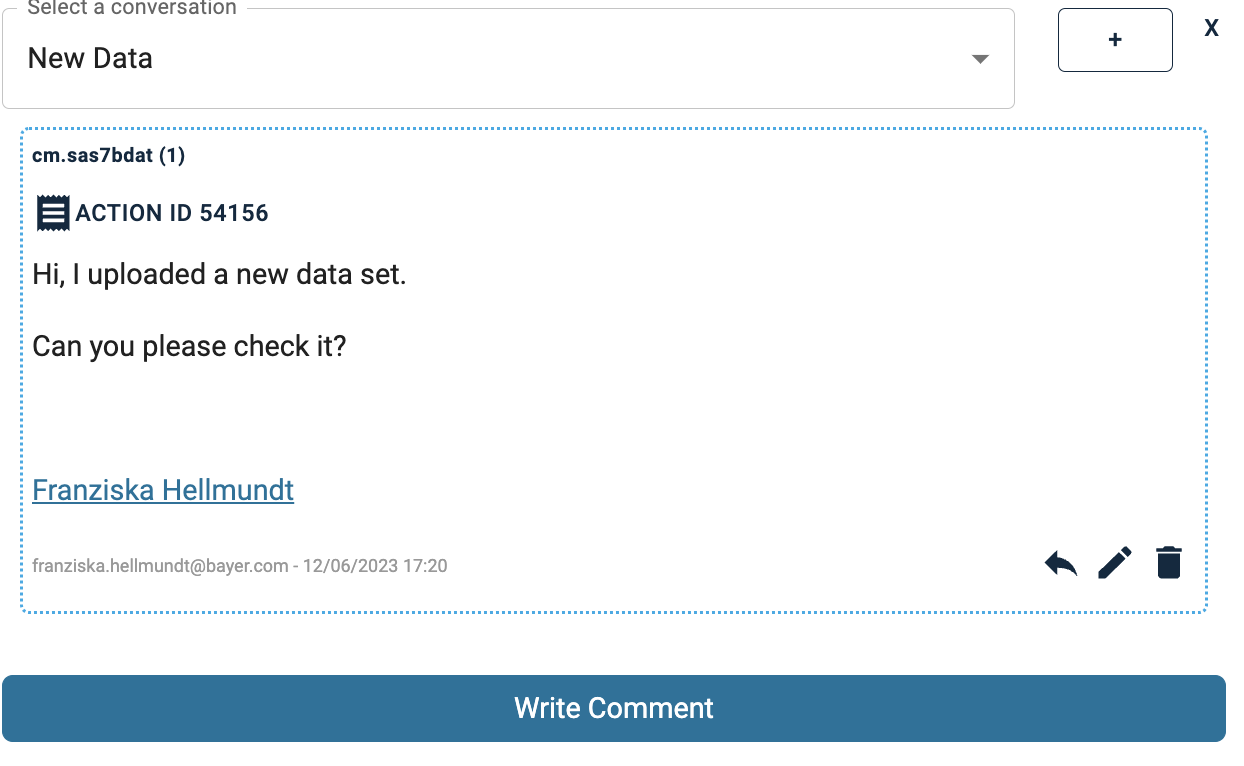
- Create a new comment (scroll to the bottom and click on
Write Comment) - Reply to an existing comment (by clicking the arrow on the bottom of a comment)
- Edit Comments created by yourself (by clicking on the little pen icon)
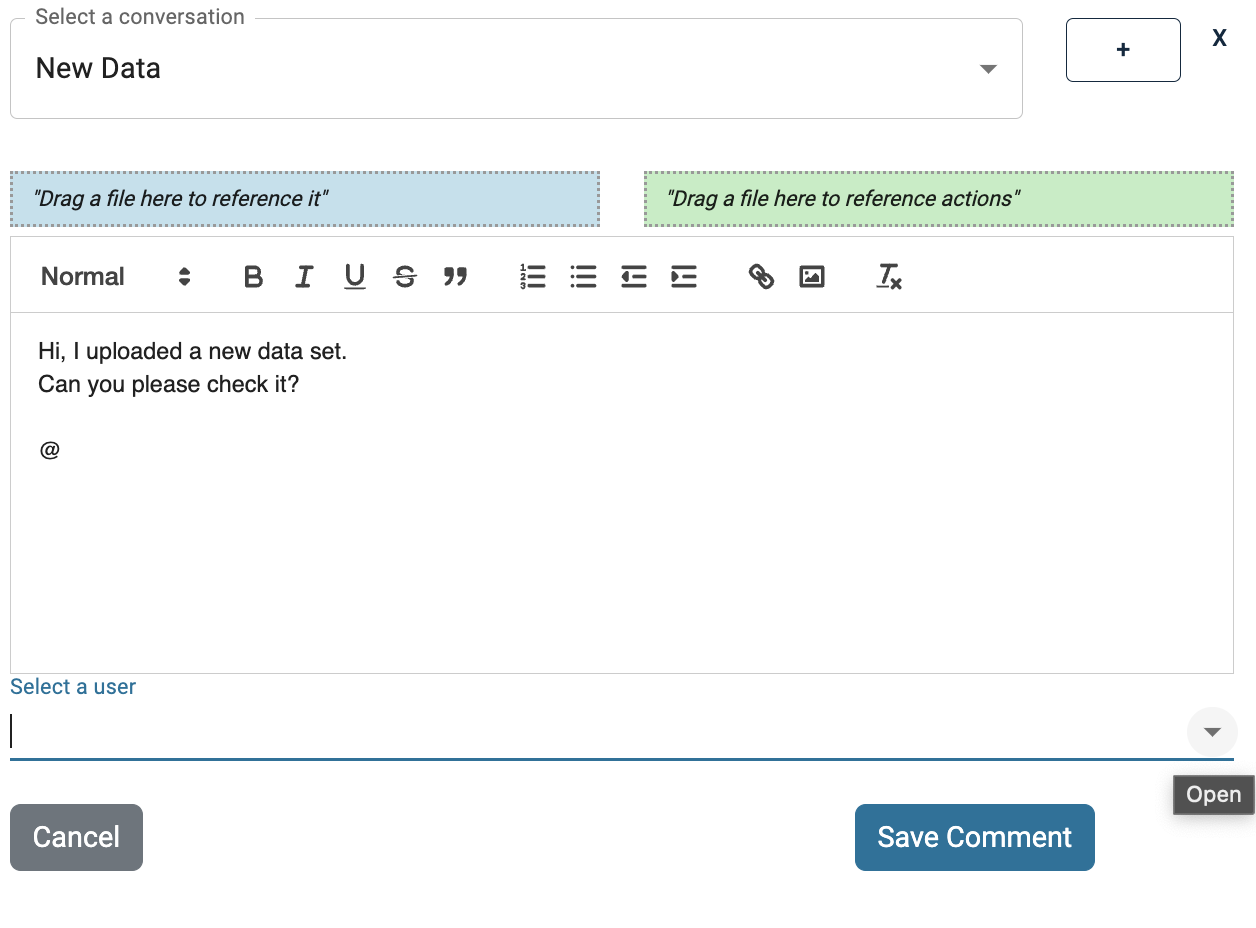
- Reference and notify people (by using
@) - Link to files, via dragging & dropping the corresponding files into the comment
- as reference to the file (drag & drop file into the blue box)
- as reference to the creating action of one file (drag & drop file into the green box)
Reference colleagues
By using @ in a comment, you can directly address your colleagues. Below the comment, a little drop down appears in which you can select a colleague. This Colleague will then be notified via e-mail.
Note: To not reveal any confidential information, the e-mail does not include any information about the content of the conversation. You have to log into PHIL to check the details.
Reference files and actions
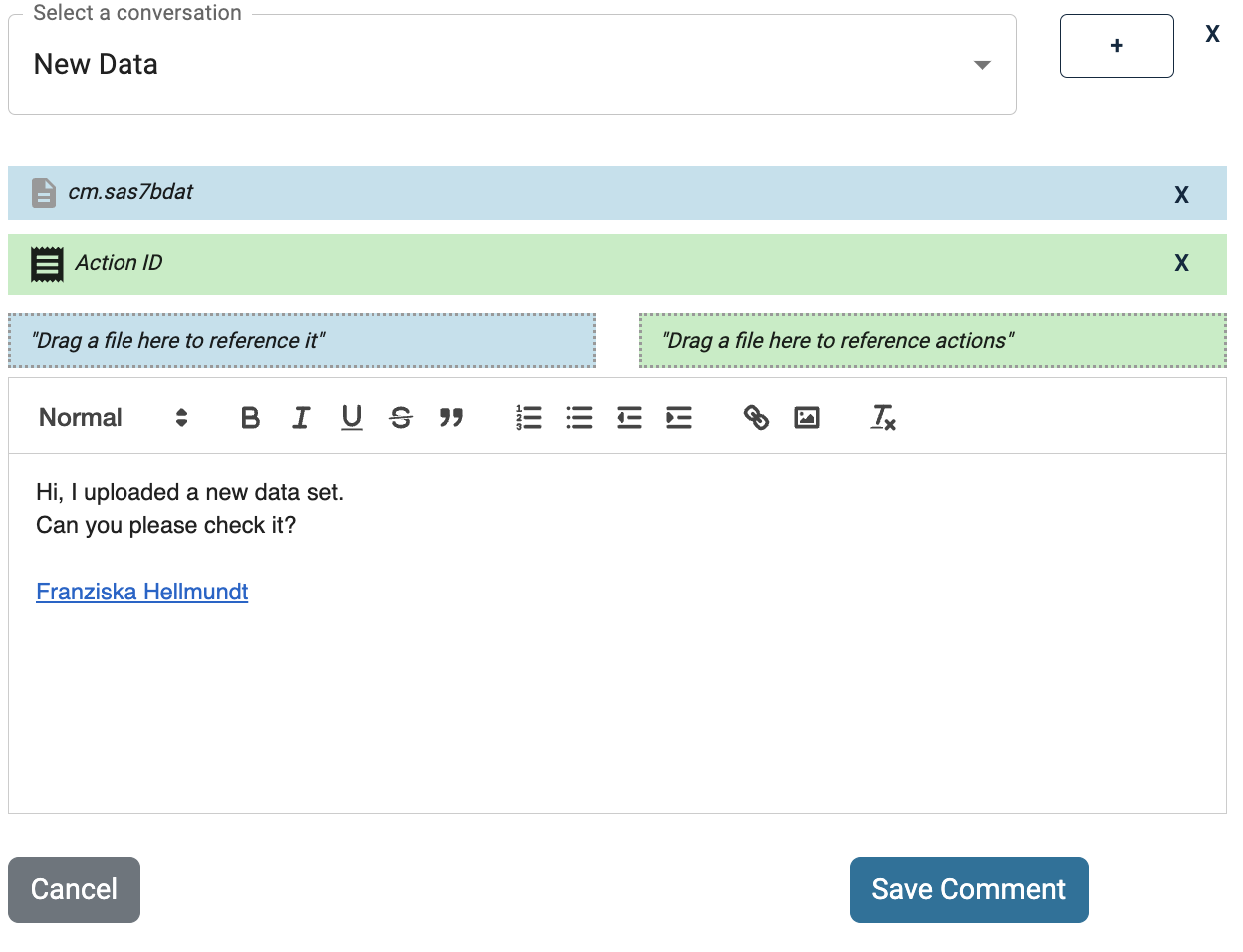
You can reference files in a comment, by simply drag&drop them from the file explorer into the little field Drag a file here to reference it. This allows to directly know which file is meant in a conversation.
In the same way, you can reference an action of a file, by dragging it into Drag a file here to reference action
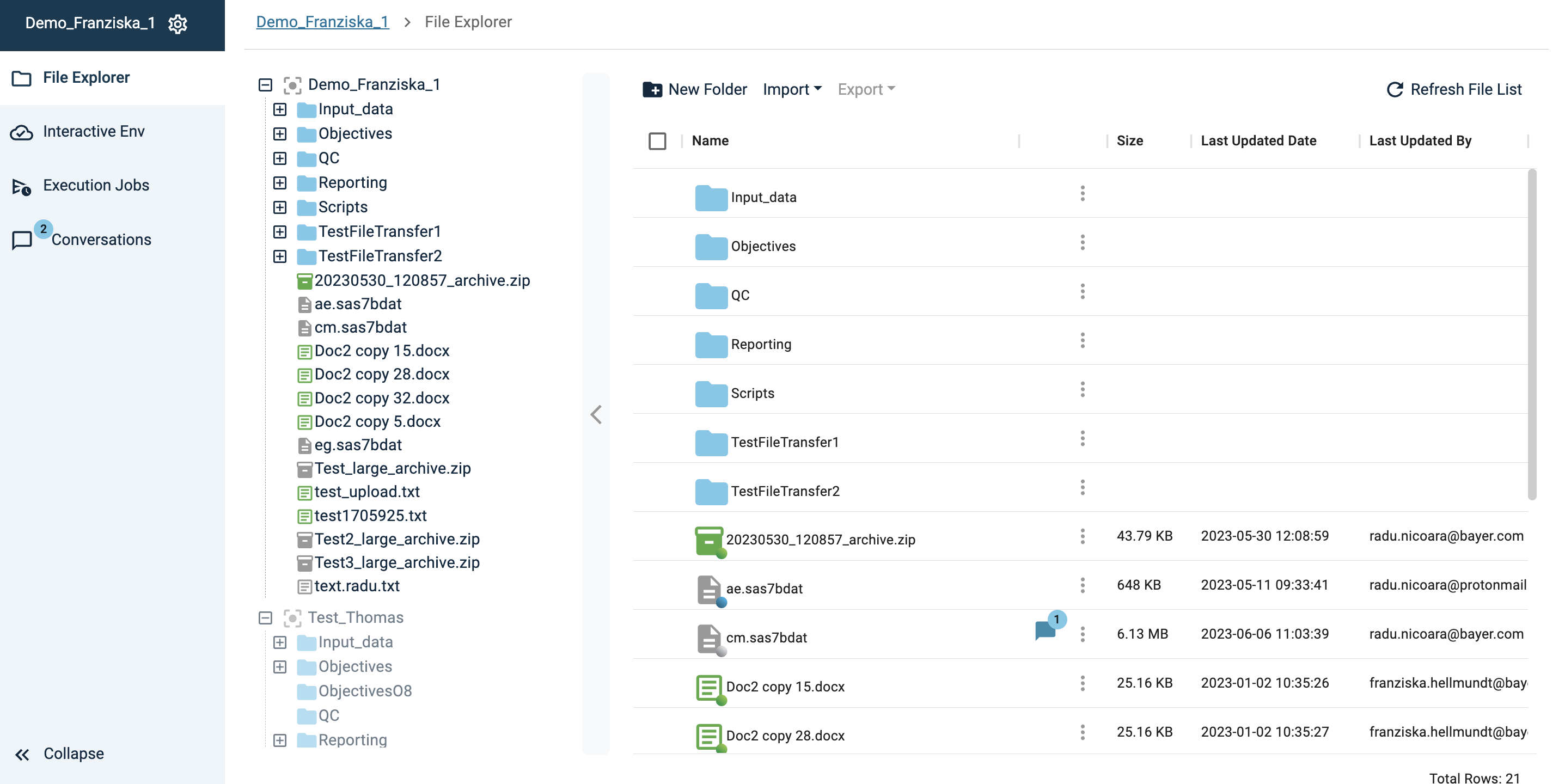
Additionally, files which have been referenced in a conversation are labeled with a little speech bubble next to them. It serves as a link and allows to directly jump into the corresponding conversation.
You can also reference an action in a conversation directly from the Creating Action dialogue, see Creating Action.