Activities
The biggest unit to organize your work inside PHIL are Activities. Activities can be seen as projects. Thus, they include any project specific information, including files, metadata, as well as project specific communication.
In order to create a new activity, click on the Create New button in the right top corner.
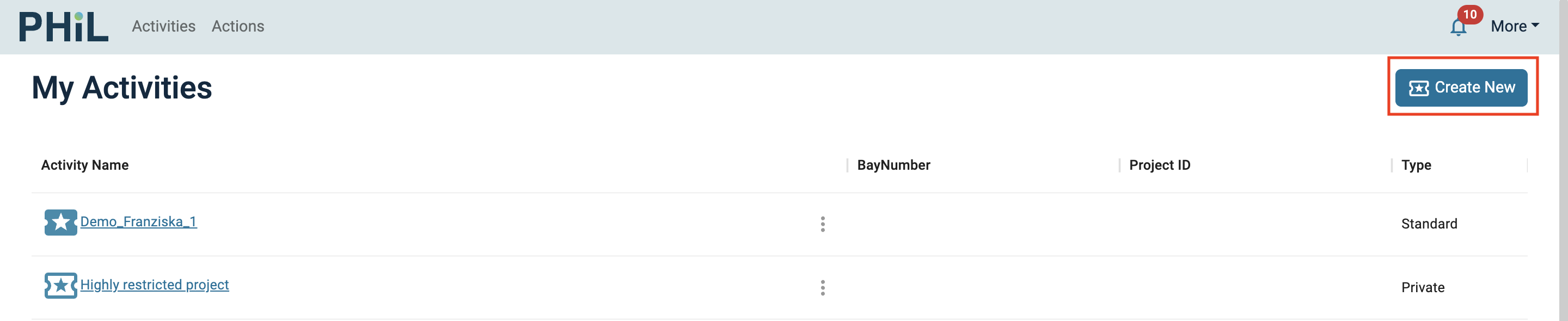
In the pop-up, you need to provide a name for the Activity. Normal users can only create public repositories, which can be seen (and accessed) by all PHIL users. PHIL users can also actively contribute to projects in public activities.
Once you filled in all the required fields you can click on Create New
In certain situations the access to an Activity needs to be restricted, e.g. if it contains unblinded data.
Such access restricted Activities can only be created by someone with a DAC (Data Access Control) role. DACs can create a restricted Activity and manage their access rights for users.
Optionally, you can fill in the following fields:
- BayNumber
- Project Id
- Activity Short Description
Read-only Activities
In addition, you can select multiple public Activities and attach them as read-only repositories.
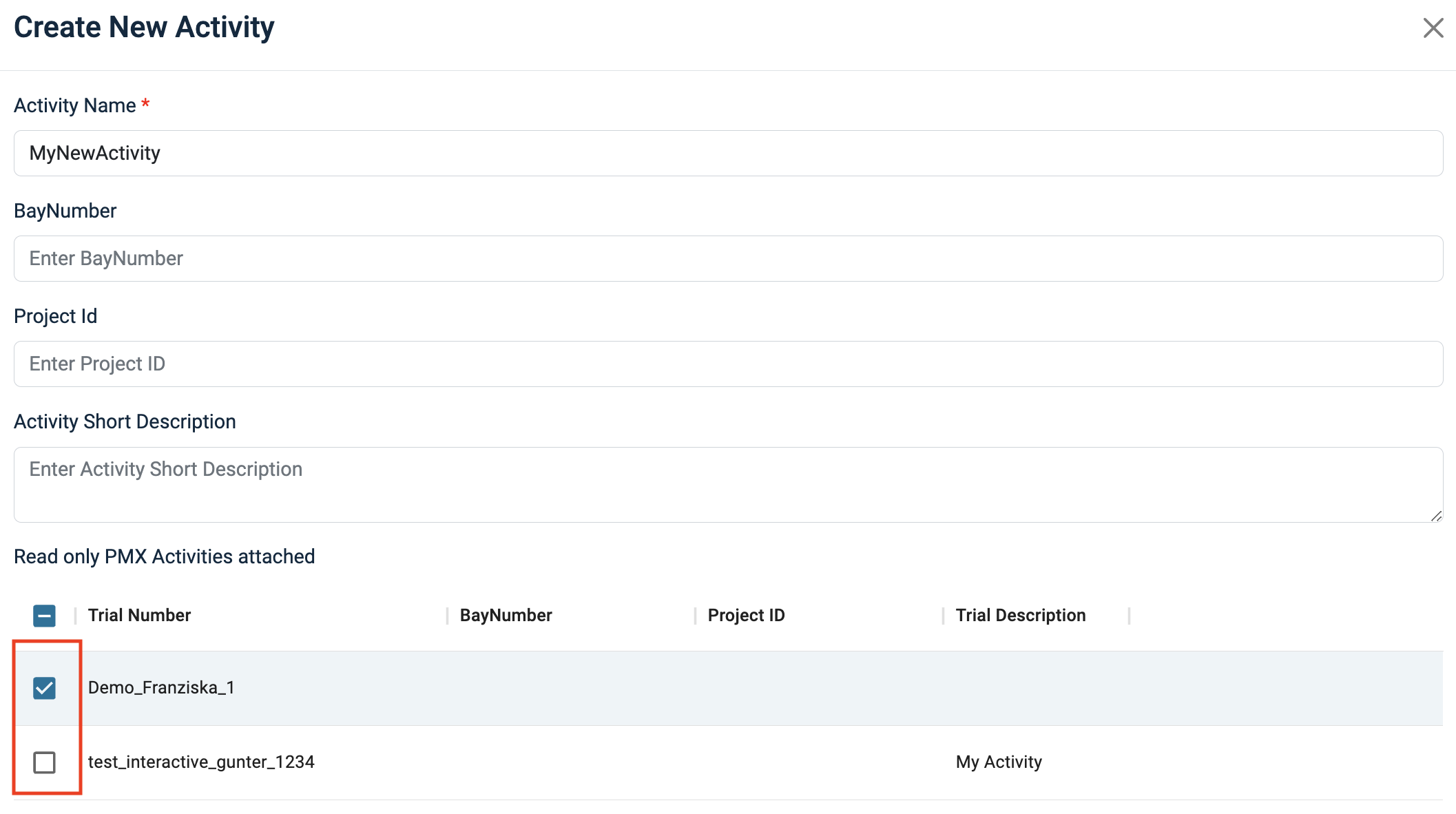
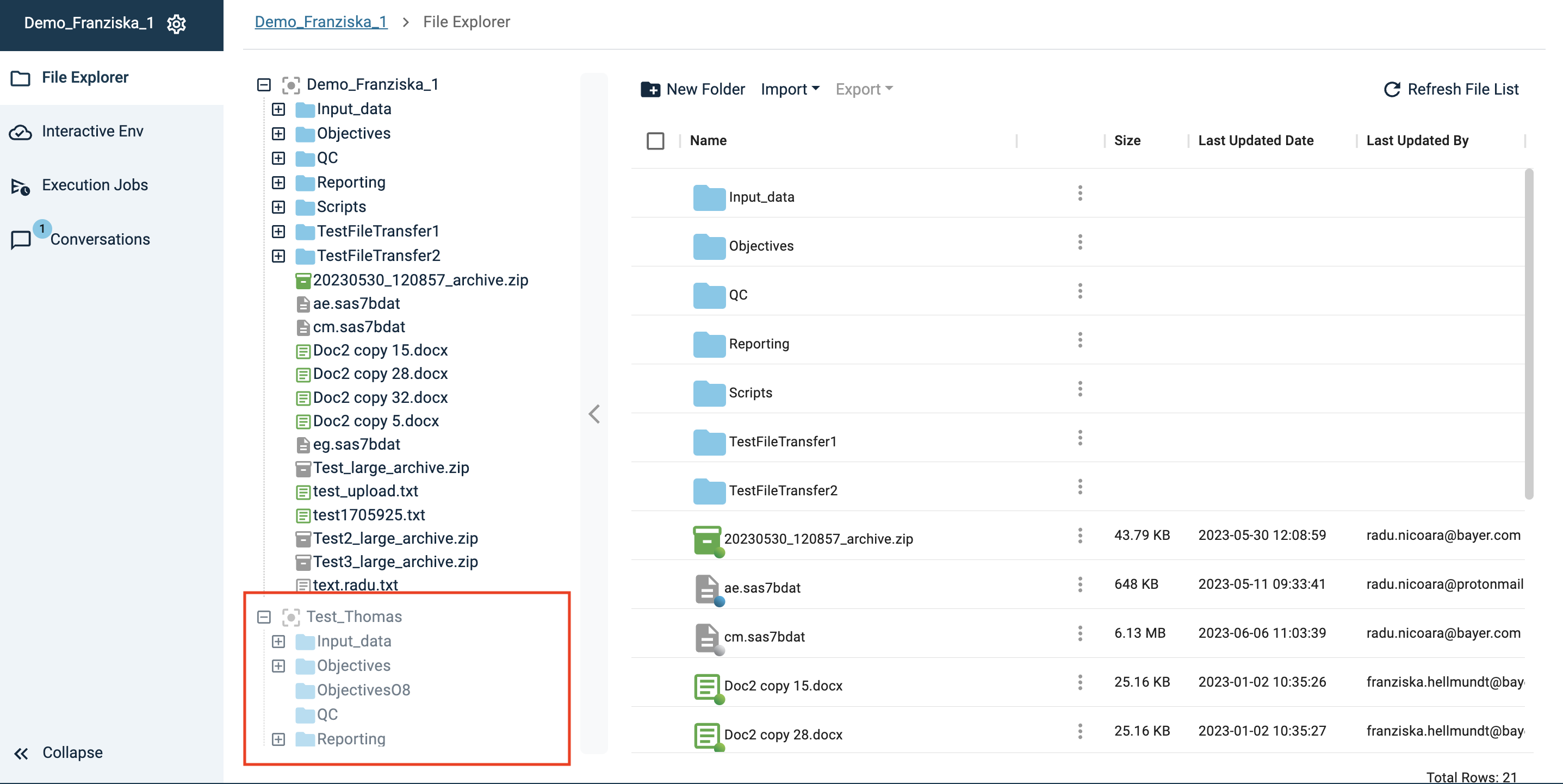
Files in read-only activities can be accessed from the main Activity. These files cannot be modified, but the user can use them, e.g. as input for simulations, download them, or copy them into the main Activity.
In the file explorer, read-only activites are shown in gray at the bottom of the list.
Edit Activities
Add read-only Activities
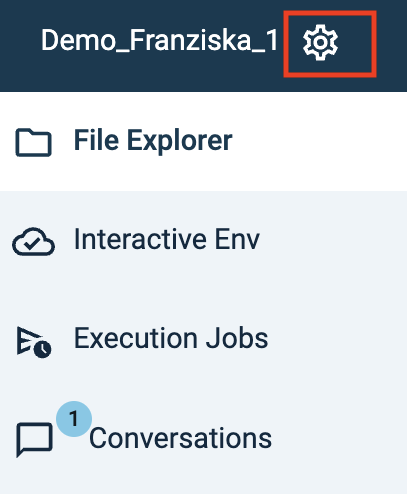
If you already created an Activity and want to add an additonal read-only repository, you can do this via the gear symbol next to the Activity.
Note: Due to traceability requirements, once an Activitiy is attached as read-only, it cannot be removed again.
Access rights
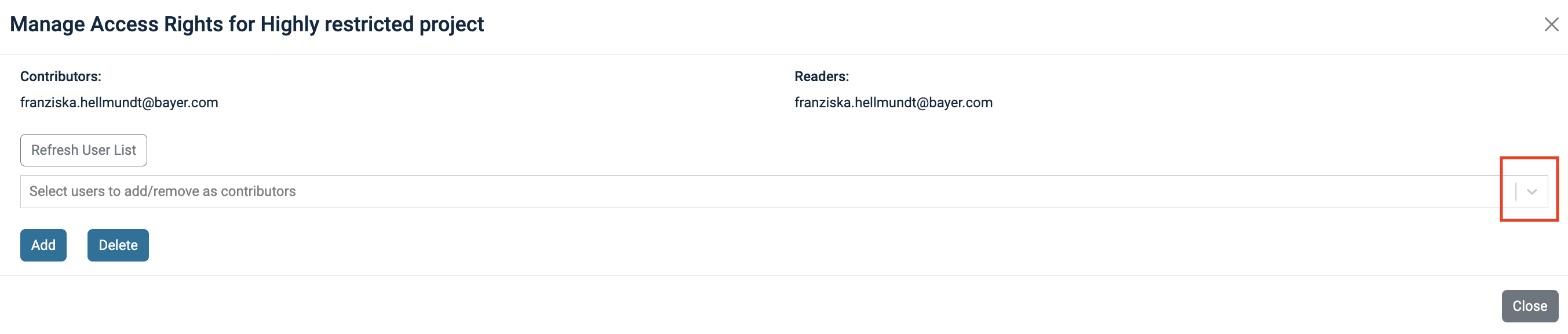
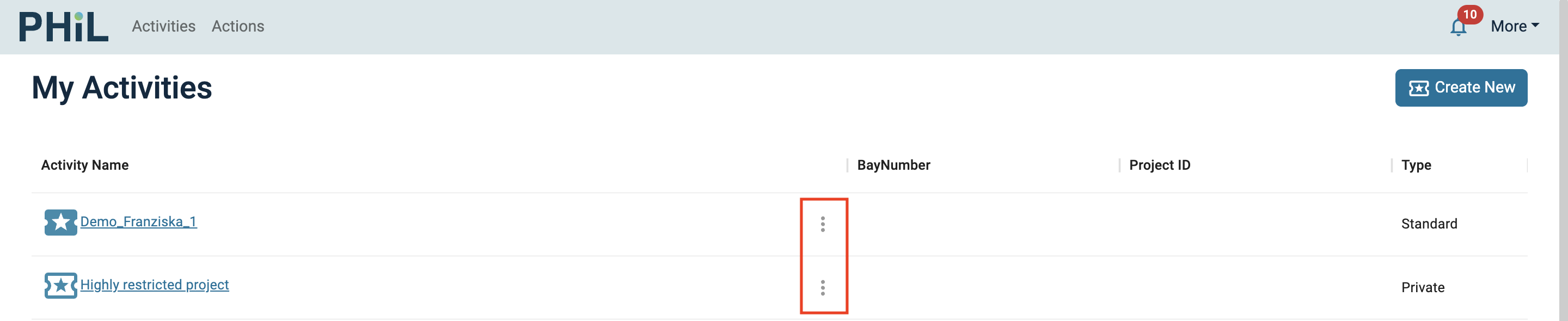
When created, user can check access rights of Activities by clicking on the 3 dots next to it and select Access Rights. The pop-up under Access Rights allows you to provide access to the selected repository for any registered user, by adding their e-mail address.
- For public Activities (colored icon), this is necessary in order to allow external users to see the Activity.
- For access restricted Activities (uncolored icon), this is necessary in order to give internal as well as external users access to the Activity. NOTE: This can be only done by a DAC.
You can add users to an Activity by selecting them via the drop down: