File Comparison
The 'File Comparison' view under Interactive Environment provides the possibility to compare the current status of the PHIL repository with the current status of the file system in the Interactive Environment (IE File System). For overview see PHIL Components. The changes can be viewed from 2 angles, depending what is seen as the source, PHIL repository or the IE File System.
The source can be swapped using the Swap button.
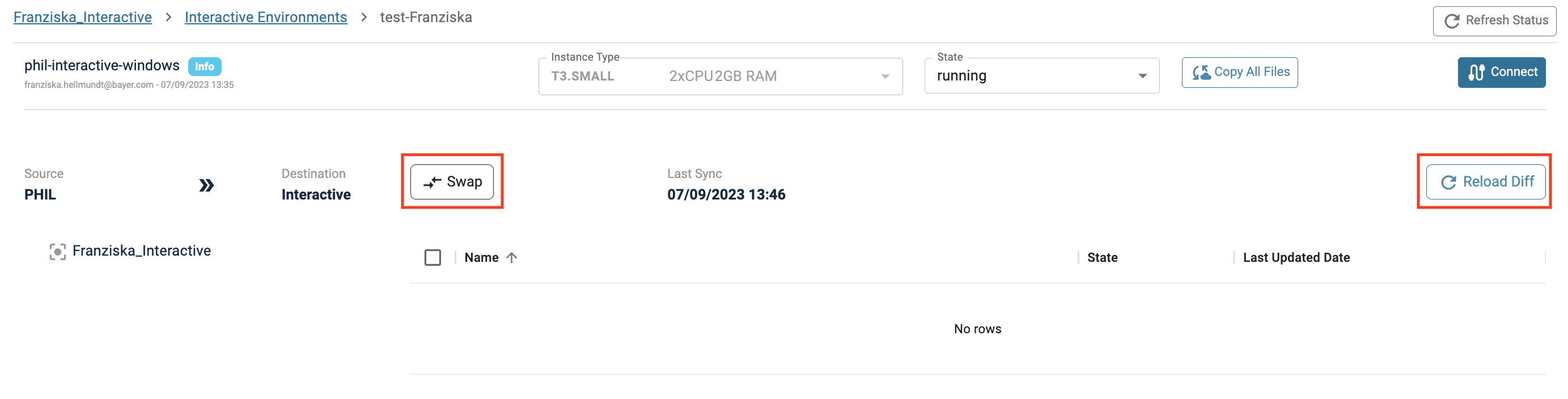
Use Reload Differences to refresh the 'File Comparison' view and list all current changes.
States
Depending on the action that was performed on a file, different states are noted in the 'File Comparison' View. The state is with respect to the selected source. For example, if the source is set to PHIL and a file is marked as added, this means that the file was added in PHIL but cannot be found in the Interactive Environment yet.
-
Changes in one location:
- Added
- Modified
- Deleted
-
Changes in both locations → creating a conflict:
- Added - Conflict
- Modified - Conflict
- Deleted - Conflict
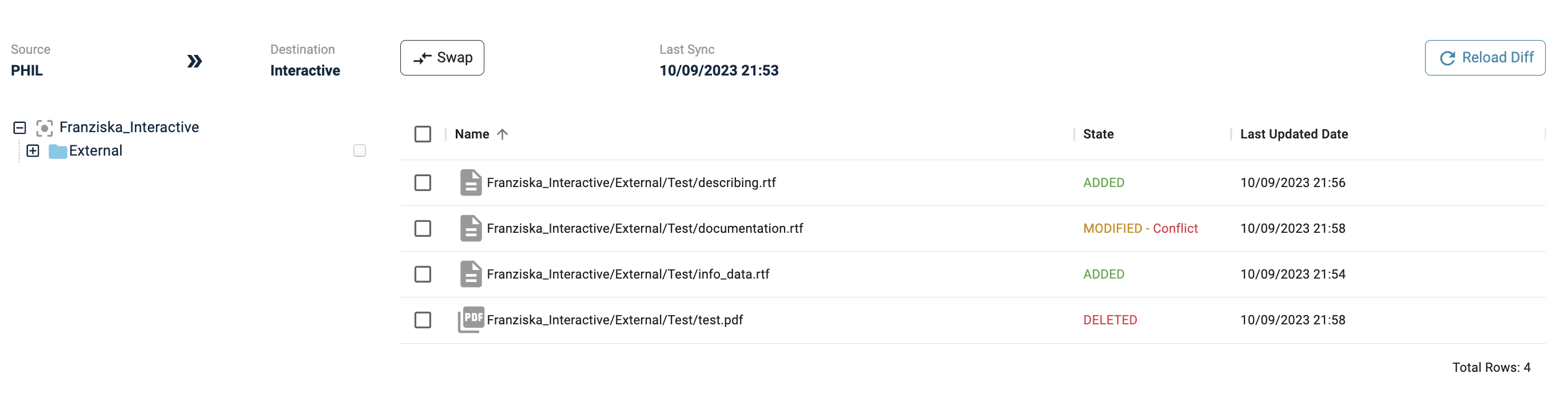
1. PHIL as source
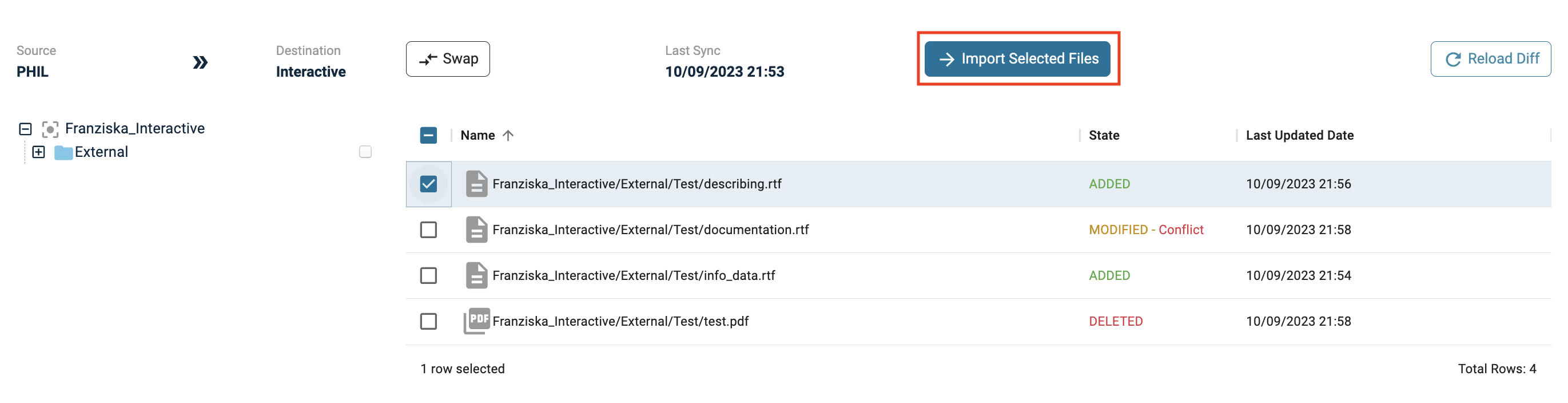
If you want to apply changes from PHIL repository to IE File System select files and click on Import Selected Files
Note:
If you want to fully re-sync PHIL to 'IE File System' and thereby loose all changes made in Interactive Environment, you can delete the current IE and create a new one.
2. Interactive Environment as source
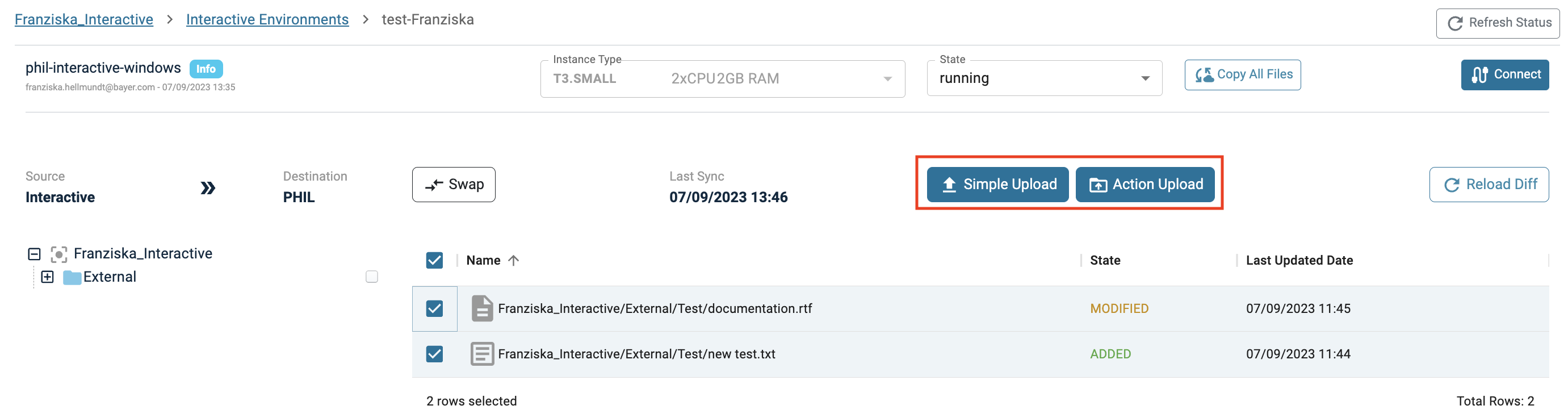
If you want to apply changes from the IE File System to PHIL repository, select files and click on
- Simple Upload or
- Action Upload (for better traceability !)
Simple Upload
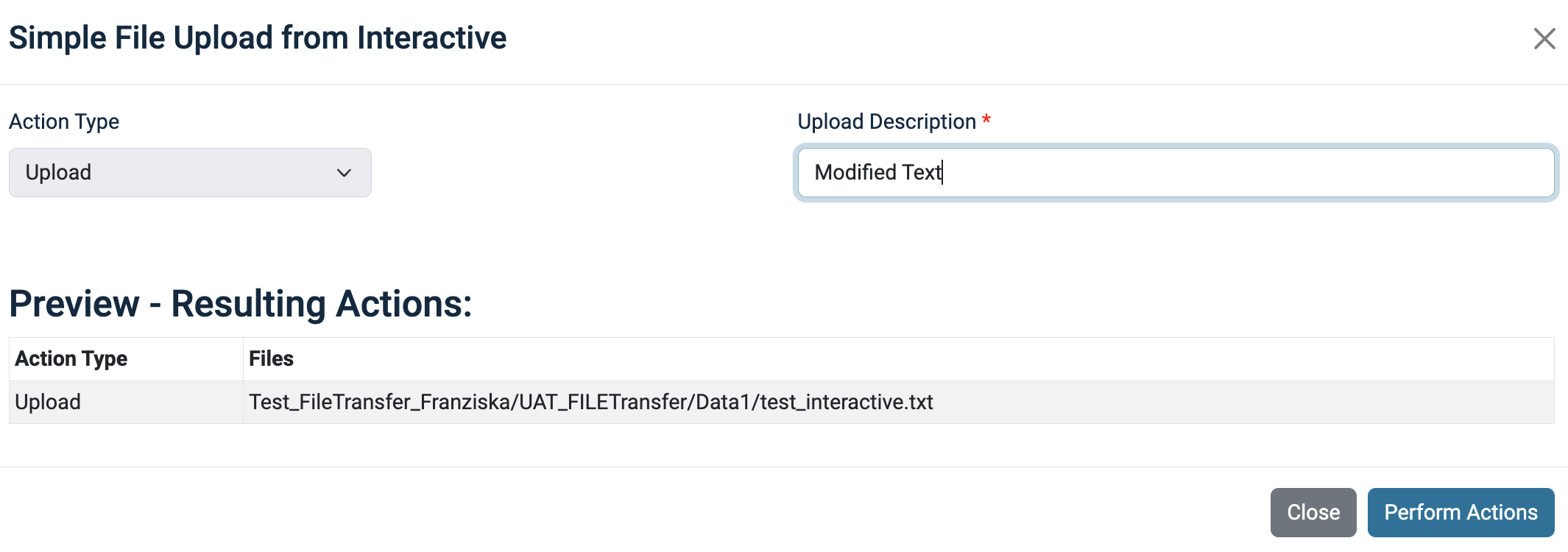
As the name implies is the Simple Upload an upload functionality which just transfers files from Interactive Environment to PHIL. The action will be classified as Upload and no information about files used to create the uploaded file will be available.
If you want to specify the input files used to create the uploaded file, see the following section.
Action Upload
The Action Upload is the more sophisticated way to upload files from the Interactive Environment to PHIL. It uses the same concept as the Upload External Action. Thereby, you can specify input-output relationships of files created in the interactive environment to ensure later traceability.
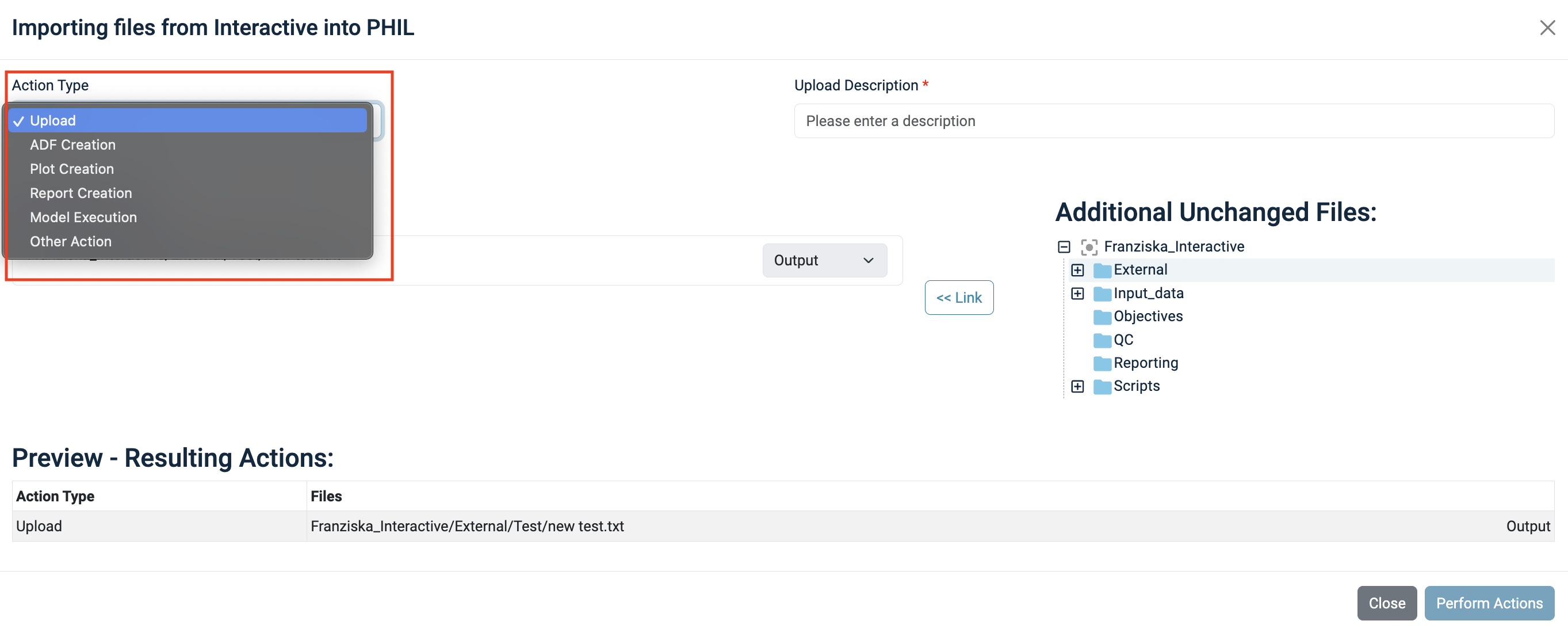
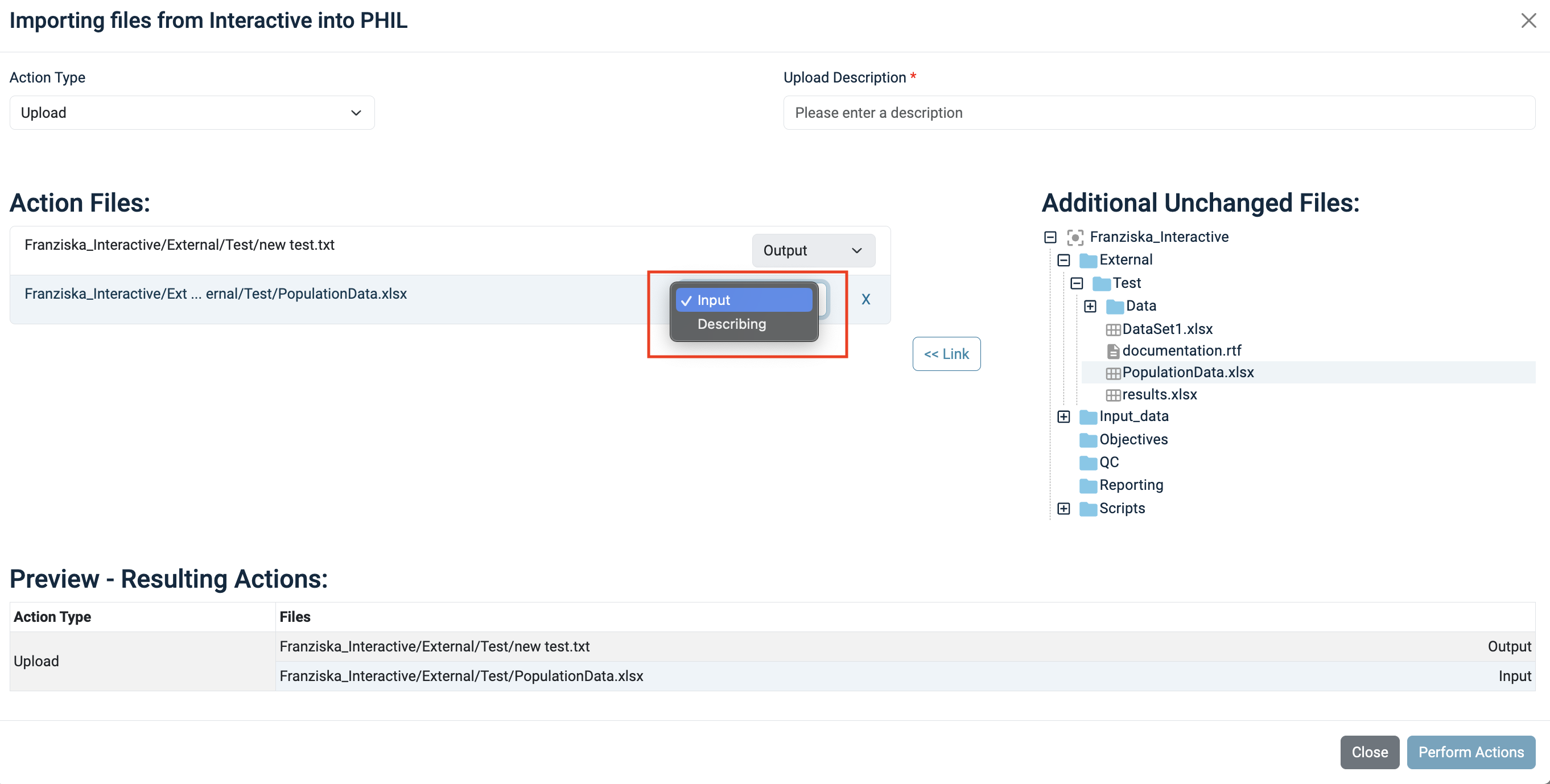
First, you need to select the Action Type. You can select from:
- Upload
- ADF Creation
- Plot Creation
- Report Creation
- Model Execution
- Other Action
Afterwards you need to provide a description.
Any file you picked, when you triggered the action upload, will be marked as Upload. Now you can browse through the file tree on the right side and select any file, you want to add to the action.
After selecting the file click on Link.
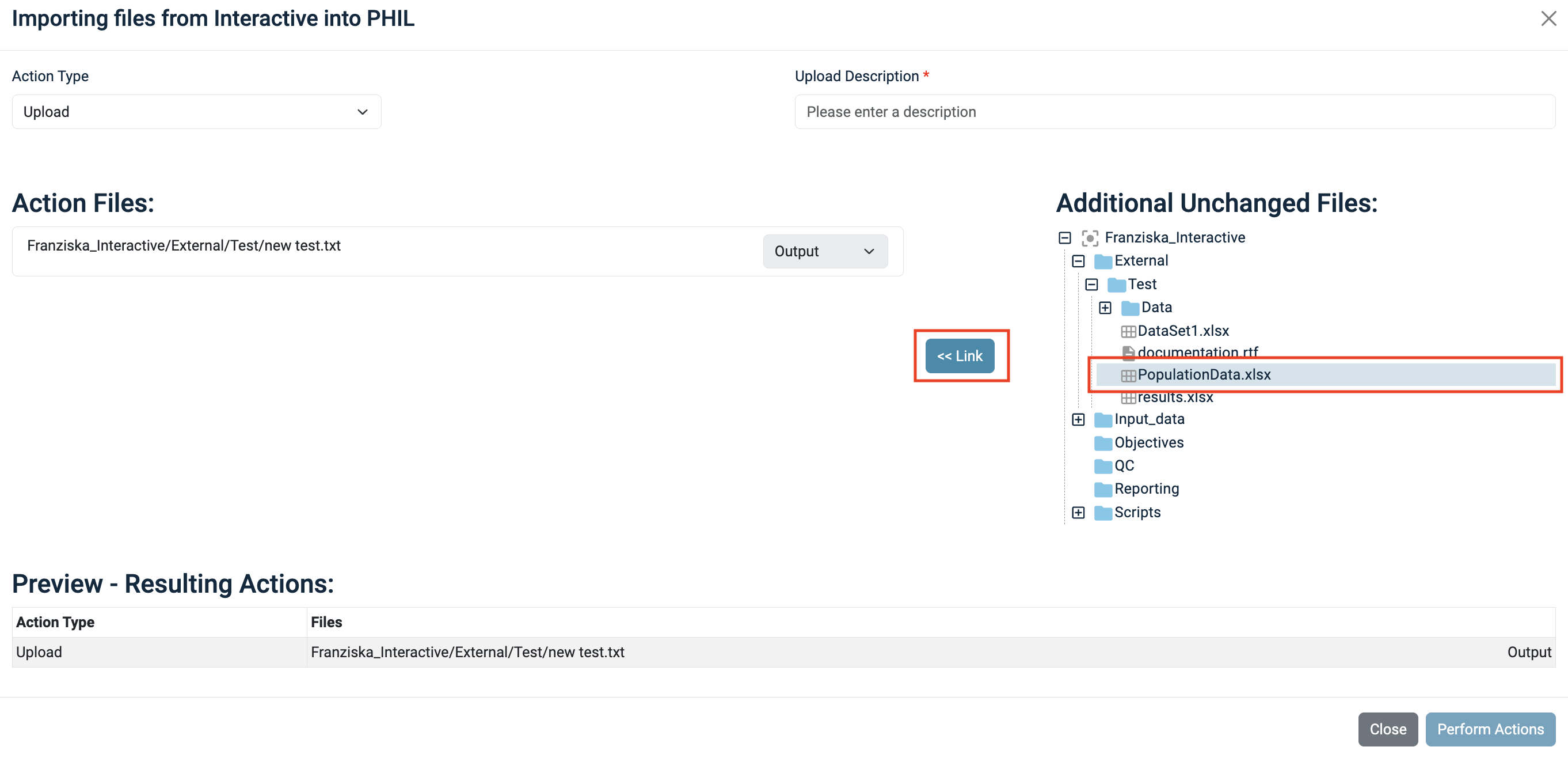
The file will appear on the list on the left side, and you can specify if it is an input or a describing file. Click on Perform Actionsto finalize the Action Upload.