Execution of Jobs
Execution Jobs View
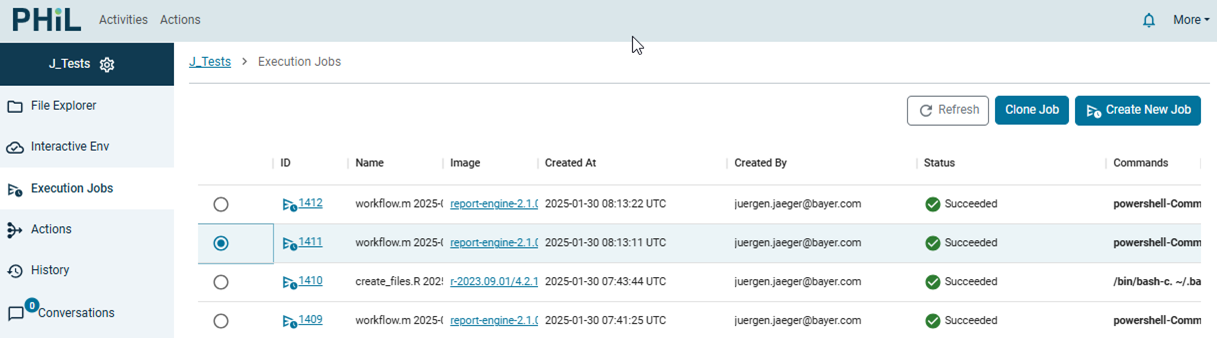
You can start and monitor batch jobs in a validated execution environment (EE) in the side bar tab Execution Jobs.
This view displays a list of all running and terminated jobs in that activity with the most important information
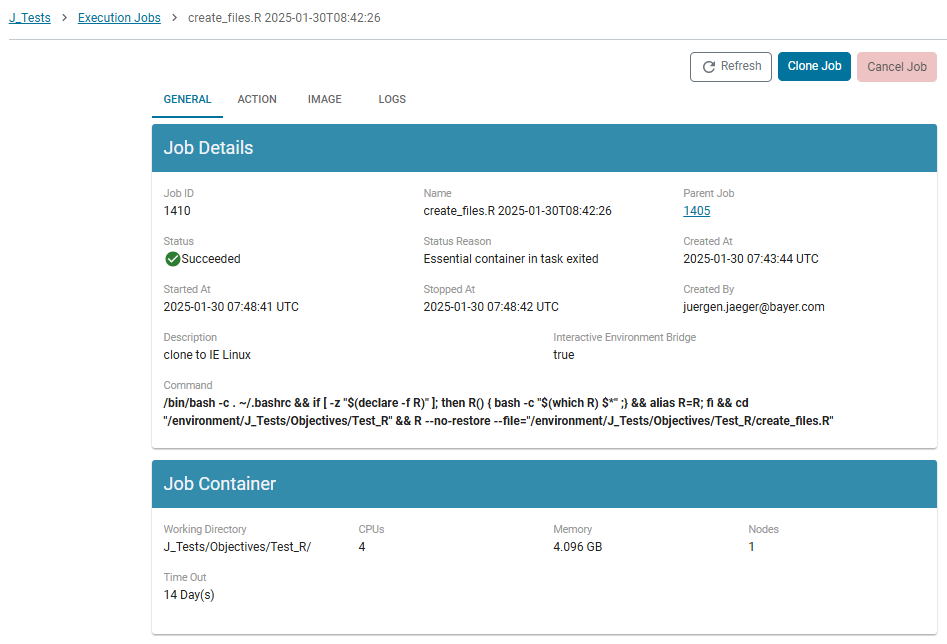
The Job ID hyperlink opens a detailed Job Properties View with more information about the job, the corresponding action, the used image and the logged output.
Defining a job
You can define a new job by clicking on button Create New Job and an empty dialog Create Job opens, where you can define the job and create it afterwards.
Alternatively you can select one of the existing jobs via the radion button and click on Clone Job, which opens the same dialog Create Job but prefilled with the job definition of the cloned "parent job".
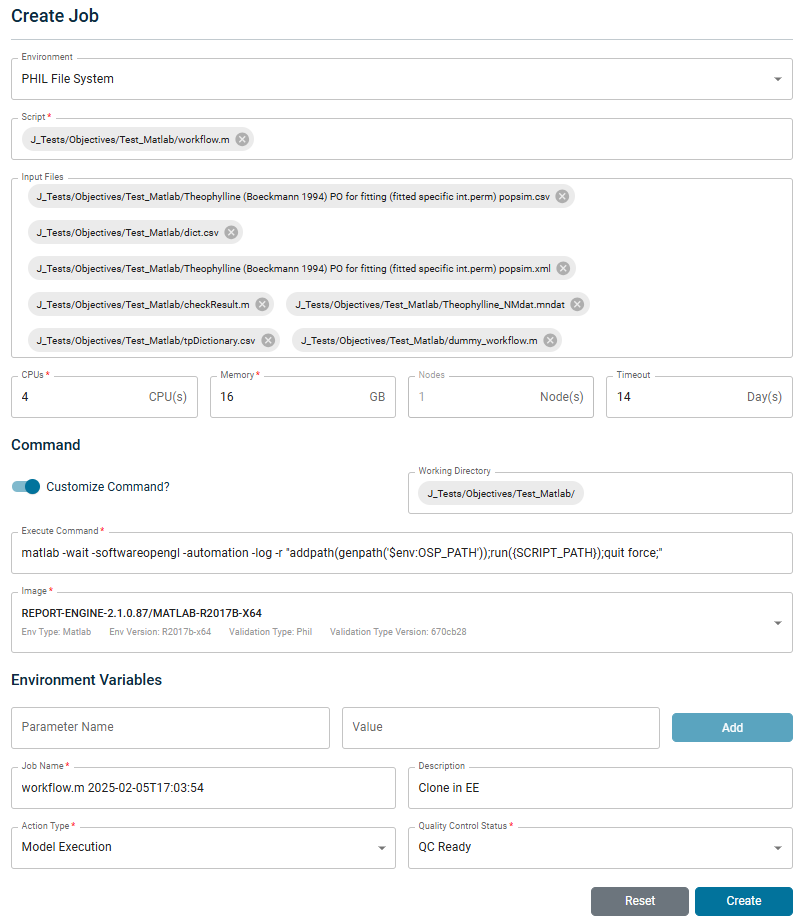
In the top row of the job creation dialog you firstly can select whether you want to execute a pure EE job (environment 'PHIL File System') or an IE-EE Job (if you have IEs created for this activity, they don't even need to be started).
The pure EE job fetches input files from and returns output files to PHIL repository, for the IE-EE job in addition before executing the EE job new or changed input files are uploaded from IE File System to PHIL and afterwards output files are downloaded from PHIL to IE File System (for details see File Transfer Concept )
Secondly you must select a Script file which actually can be a script or a model file, which is used then in the command executed in the EE.
From the suffix of the selected file is derived a certain job type (R, NONMEM, Matlab, SAS, ...) which determines a default command and a default image for the execution of the job.
Sometimes Input files can be selected directly from parsing that Script file (e.g. from $INPUT statement in case of NONMEM model files), otherwise you need to select them yourself.
Selection of Script file and other Input files take place in the selected environment!
If in case of a cloned job the environment is changed and some file cannot be found it is marked red and you need to search for some alternative file.
In the next row you can configure the machine and choose number of CPUs, size of the Memory, number of Nodes ("virtual computers") and a Timeout for the job execution.
There exist certain restrictions for the configuration (for Windows you can select only <= 4 cores):
| #CPUs | Memory[GB] |
|---|---|
| 1 | 2-8 |
| 2 | 4-16 |
| 4 | 8-30 |
| 8 | 4-64 |
| 16 | 4-128 |
You can customize the Execute command default, edit the Working Directory (by default chosen from the Script file) and choose another Image. In principle you can enter any command to be executed in a shell, which makes the job execution very flexible. E.g. you could use as command "ls > ls_out.txt" and you will get as output file a directory listing of the working folder.
If you create a new job, then in case of changing the environment, script or image a customized command is replaced by the default command again; in case of cloning a job a customized command just stays.
You can even add Environment Variables with values to configure your script or model execution.
By default the Job Name is set as concatenation of script file name and timestamp, but you can change this.
Default Action Type is 'Model Execution', please choose here the right Action Type, so that later in the Actions list you can find actions easier.
The Quality Control Status of the corresponding action is set to 'None' by default. You can change this, if you have done the quality control of that job beforehand. If you perform quality control after you have created the results then you can edit the Quality Control Status later via the action link in the Job Properties View.
Be aware that in case of IE-EE jobs also the Upload Files action from IE to PHIL gets the same Quality Control Status.
Creating the defined job
After definition of the job you can create it clicking on the button Create.
In case of a pure EE job the job is created synchronously and after a short time the Job Properties View for that job is displayed.
In case of an IE-EE job the upload of input files can take a while and therefore the job is started asynchronously and the Execution jobs view is displayed.
In both cases the job is then submitted, an instance of the defined Exceution Environment is started, then the job is started and running until it is succeeded or failed.
By the Refresh button you can update the display of the job Status, and after the job is running you can display in the Logs tab of the Job Properties View the current terminal output of the job. With this information you can also decide to cancel a running job.