History
Overview
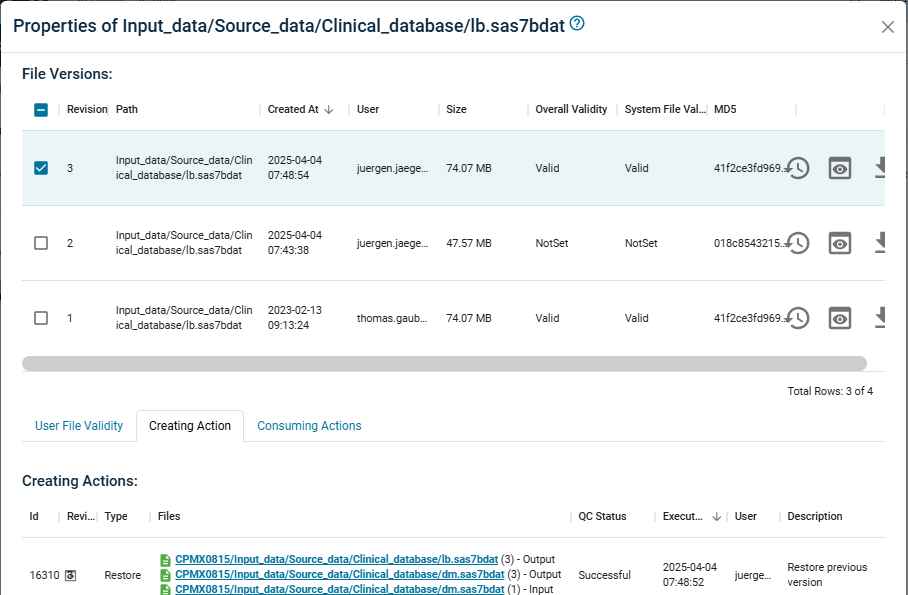
As already mentioned in the "General Concepts" in PHIL all file versions are stored! They cannot even be deleted only hidden.
In the File Properties Dialog you can see all versions for a specific file, but you may also be interested in viewing all files at some historical point in time in a consistent view. This is possible in the History view, but also more.
The stored History can be used to
- look at a historical state of the main file repository of an activity
- restore some historical state into the main file repository
- transfer some historical state to a new Interactive environment
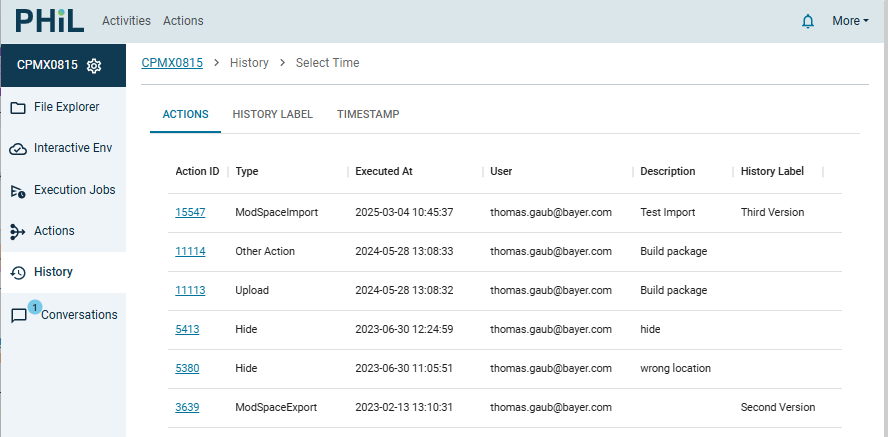
Before we explain these functions in more detail, we present three options how you can select a historical state in the History view (in the respective tabs)
ActionsYou can select an Action from the Actions list to display the historical state directly after execution of that actionHistory LabelAs the list of Actions in an Activity may contain thousands of Actions you have the option to store history labels for important points in time. And you can also select one of these stored History LabelsTimestampYou can also select just a point in time.
A History Label can be stored via the Create Menu in the File Explorer or after opening a Historical View by pressing the button New History Label. When opening a Historical View with History Label it can be renamed with the button Rename History Label.
Historical View
After selection of the historical state you see the file versions of the main repository present at that point in time. Files created later are not displayed, files hidden later are here displayed. The QC status and File validity is displayed for the historical version, but based on the current quality/validity assessment for that version.
Connected Read only repositories are still displayed in the current state.
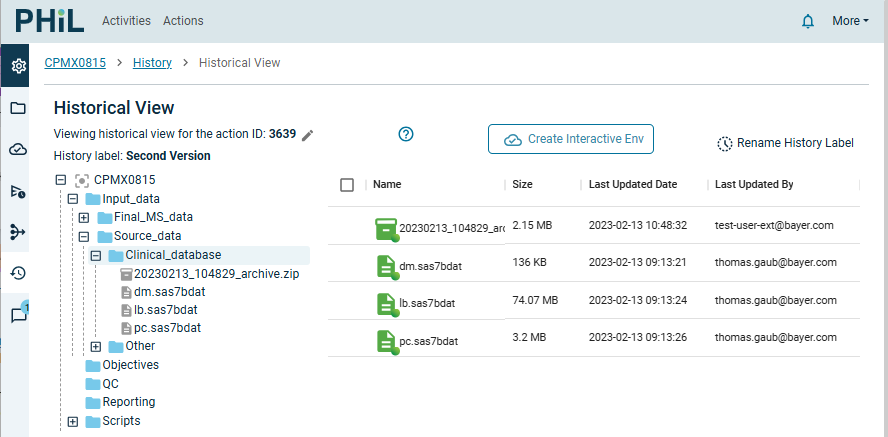
In contrast to the File Explorer the context menu for the files in the File List is missing, but you can open the preview by clicking on a file and there also select Properties,Download,Traceability to see the metadata or download the historical version.
Restore historical state
In the Historical View you can also select single files, folders or even all folders for Restore.
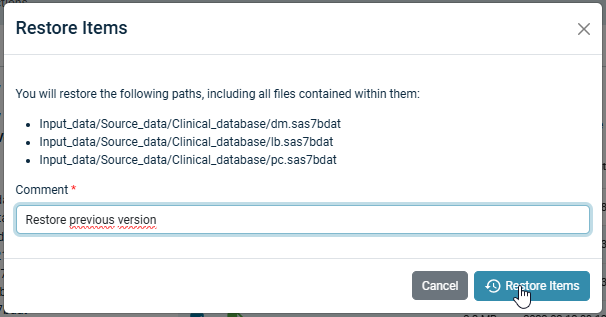
For all selected files the historical file versions will be restored=copied to new versions with Creating Action = "Restore". Input files for this action are the historical file versions (with identical content). That means in particular:
- selected file versions, which have been hidden in the meantime, will reappear in the
File Explorer - files, which had been created in the meantime, will stay visible in the
File Explorer - the version history of all files is retained, so you are free to restore later to any state between the historical and current states.
Nevertheless you should carefully use the Restore, because the action adds another step to the version history and trace, which cannot be undone, just be compensated by another Restore action.
Transfer historical state to Interactive environment
If you just want to work with the historical state in an Interactive Environment without the need for Restore, e.g. use an old script version to develop a new one and creating by this new output files, you create a new Interactive Environment based on the historical state of some or all files. There exist two ways to do this
- Open the
Historical Viewfor any historical state and clickCreate Interactive Environment - Open
Interactive Env, clickCreate Interactive Environmentand select aHistory Label(see Interactive Environment)
When uploading any files from the IE keep in mind, that by "Simple Upload" no traceability information is provided. By using "Action Upload" you can provide the used input files as traceability information.