Interactive Environment
The Interactive Environment - often abbreviated by IE or Interactive Env - provides the option to spin up virtual compute instances on AWS, which come pre-installed with the following applications:
| Windows | ||
|---|---|---|
| OSP-Suite (11.2) | PsN | R (4.3.1) + OpenVal packages + ggpmx + SPM RE |
| Pirana (21.11.1) | Monolix Suite (2023R1) | |
| NonMem (7.3 + 7.5) | RStudio (2023.06.0) |
| Linux | |
|---|---|
| Pirana (21.11.1) | R (4.3.1) + OpenVal packages + ggpmx |
| NonMem (7.3 + 7.5) | RStudio (2023.06.0) |
| PsN |
These instances provide working environments, in which you can explore your data, develop scripts, and run test executions, etc. The Comparison view allows you to transfer data from and to Activities in PHIL (see Comparison View).
Note: Interactive Environments should not be seen as permanent file storage location.
Files should be regularly synced with the file system of PHIL. Nevertheless, as long as you don't delete the environment, you can leave a session and close the window, and when you come back the interactive environment still exists, including the file system in the state you left it behind.
The Interactive Environment does not provide a validated R version. For runs in a validated environment use the Execution Environment.
Creation of an environment
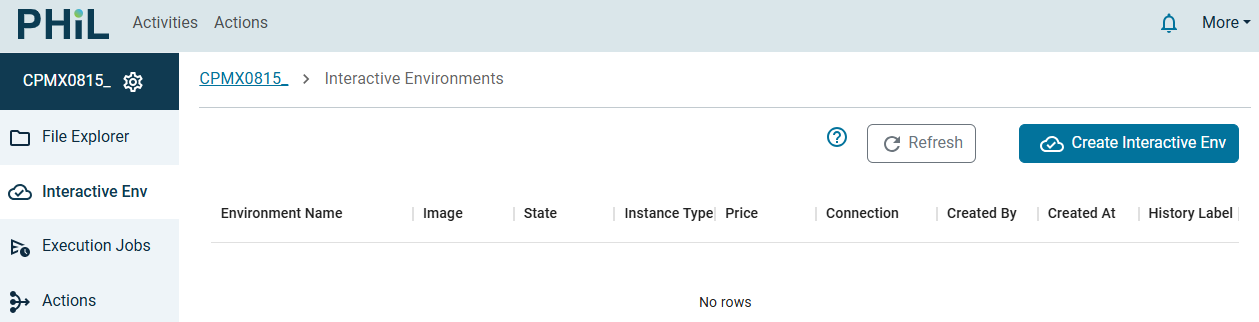
To create an interactive environment, click on Create New Interactive in the Interactive Env view.
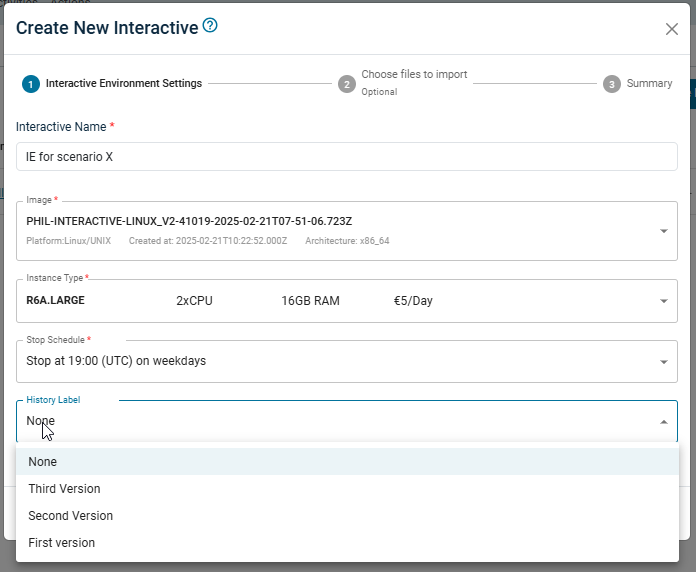
In the pop-up you need to select
- a name for the environment: This helps you to identify the IE created by yourself, in case of multiple people working in one Activity and creating interactive environments
- the
Imagefor your machine: Choose between Windows or Linux - the
Instance Type: Be aware that higher specs come with higher costs! - potentially another
Stop Schedule: To avoid costs by unobservantly not stopped IEs all IEs are stopped at 19:00 UTC by default and need to be restarted the following day. If you need an IE running overnight you could here select "No stop schedule". But we recommend to switch this option on only in such situations in the Interactive Environment Details View. - potentially a
History Label: If you want to transfer files instead from the current state from some historical state (see History).
Depending on the selected PMxActivity and the size of its repository, the creation can take a few minutes. During this time the status of the IE is pending.
The environment is ready to use when the status switches to running.
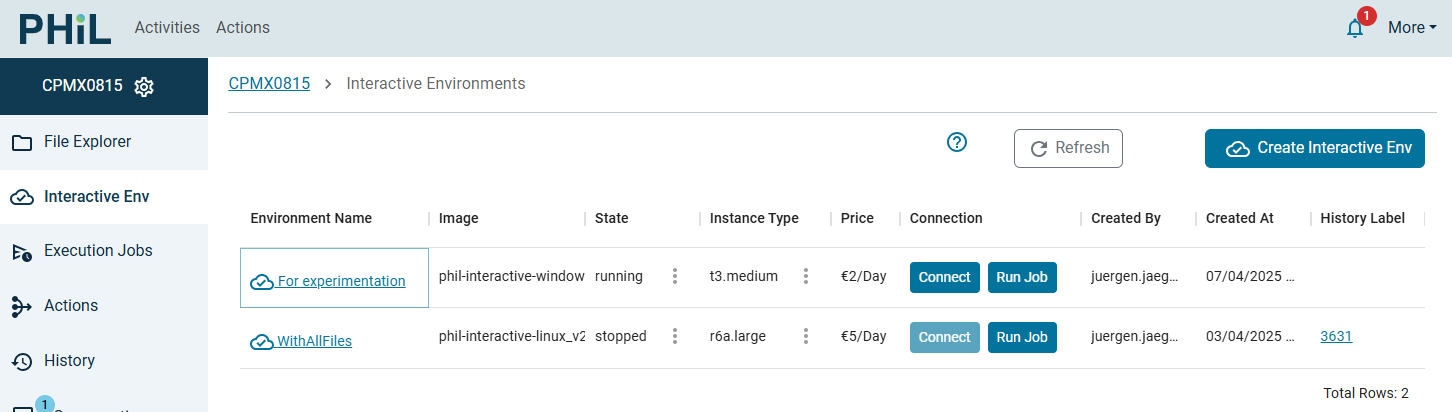
In the Interactive Env view list with the existing IEs you can
- open a IE Details View by clicking the "Environment Name" link
- connect to an IE and open it in an additional browser tab by clicking the
Connectbutton - start an IE-EE Job on the IE File System by clicking the
Run Jobbutton (see Defining a job for more information)
Connect to the environment
You can connect to an environment by clicking on the Connect Button in the Interactive Env view or in the IE Details View.
In this view you can also switch the "Stop Schedule" if you need the IE overnight.
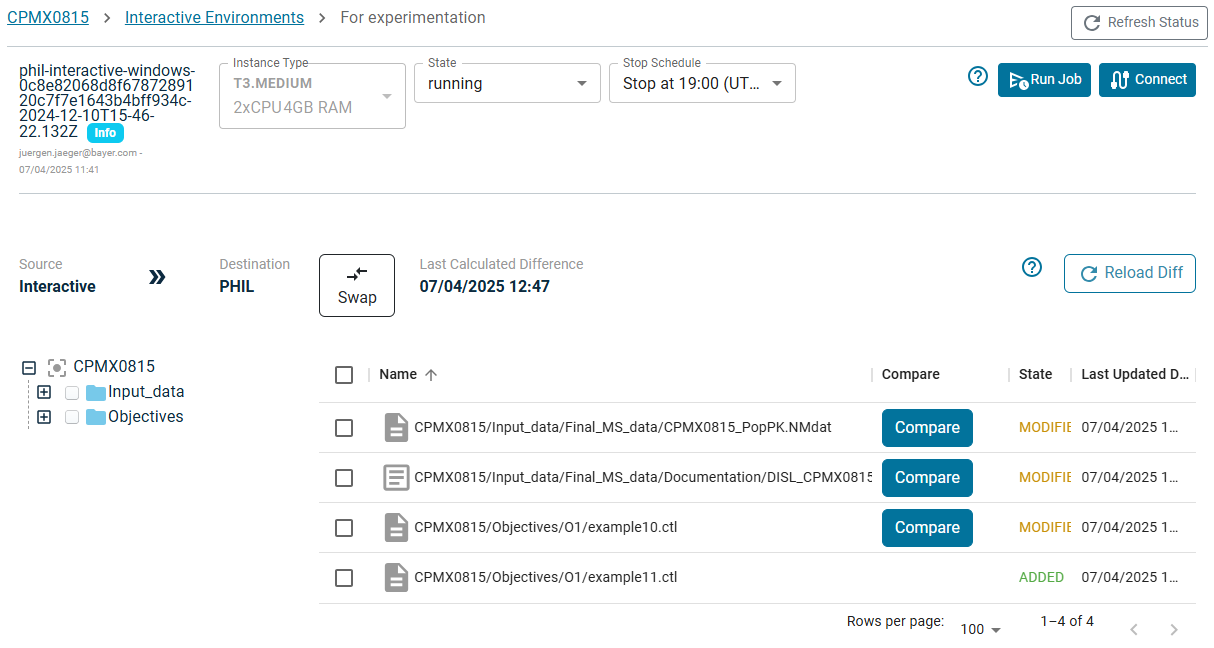
Other users with access to the Activity can enter the same environment in parallel. Every user gets their own session, but they share the IE File System (see PHIL Components).
Once Windows/Linux is started, you can find all files from the Activity in windows on the drive :H
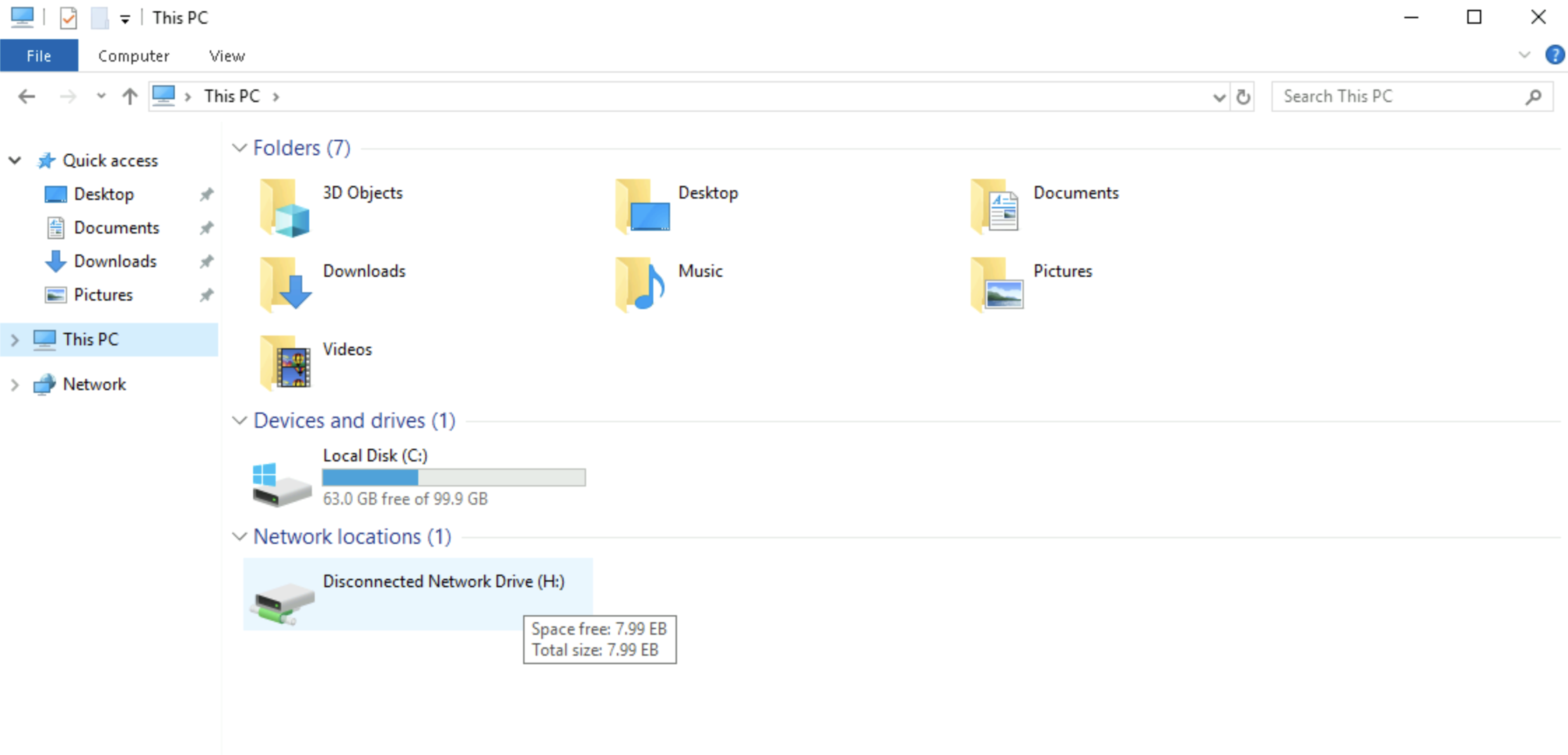
and in Linux under /environment
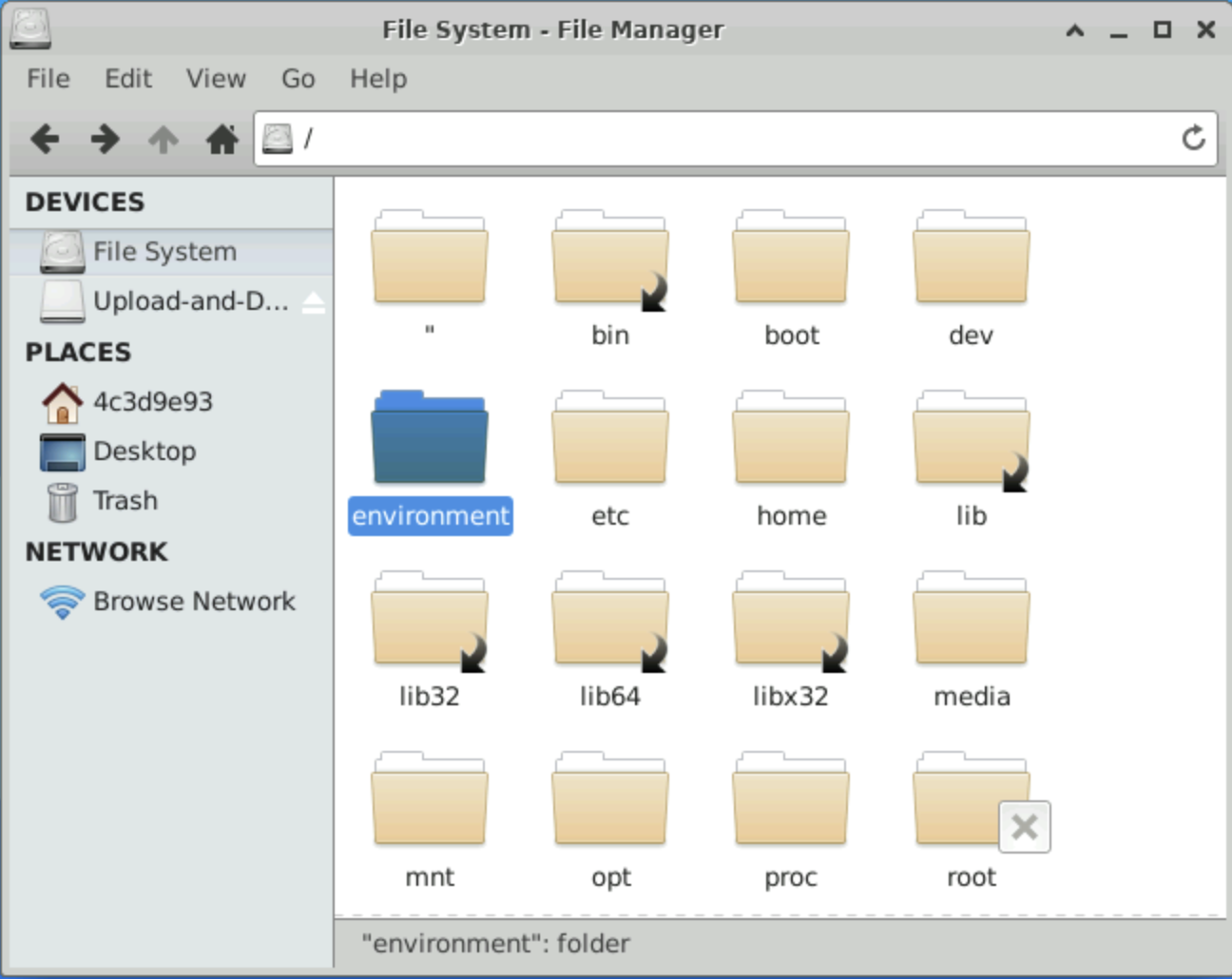
Note: When you create a new environment, it automatically syncs the current state of the file system in PHIL.
Once you change anything on either of the two systems, you need use the Comparison View to sync the states.
Stop an environment
Note: By stopping an IE you do not lose any data!
To save compute costs, you should keep/set the "Stop Schedule" to "Stop at 19:00" where possible.
You can also explicitly change the "State" of an IE to Stop in the respective colum or field in the Interactive Env view or the IE Details View.

Delete an environment
You should avoid to keep IE instances if you don't need them anymore.
In this case, you should delete them by selecting the Delete option instead of the Stop option.
Make sure to sync all needed files into PHIL before deleting the environment in order to avoid data loss (see File Transfer).
Note: If you delete an Interactive Environment, any changes to files that have not been synced with PHIL are lost.