Quality management
Color code and icons
Easy perception of validity and quality is established by a color code.
The color of file icon informs about the File Validity
and the color of the dot on the bottom right of the file icon informs about the Quality Control Status of its Creating Action.
Hovering over the icon explicitly mentions the File Validity.
The color code is also used in other dialogs, e.g. the Creating Action. Properties, and Traceability Report dialogs available in the file context menu.
File Validity can take these 3 values: Valid [green], Invalid [red], Not set [grey].
Quality Control Status can take these 4 values: Successful [green], Failed [red], Marked [blue], Not started [grey].
Examples for such color coding:
 File Validity is Valid and Quality Control Status is Successful.
 File Validity is Not set and Quality Control Status is Marked.
 File Validity is Invalid and Quality Control Status is Successful.
The invalidity of the file here is caused, becaused some input file of that action is invalid. By navigating backwards in the workflow you can find out the reason for invalidity of that input file, see Navigation through data flow
Editing Quality Control Status
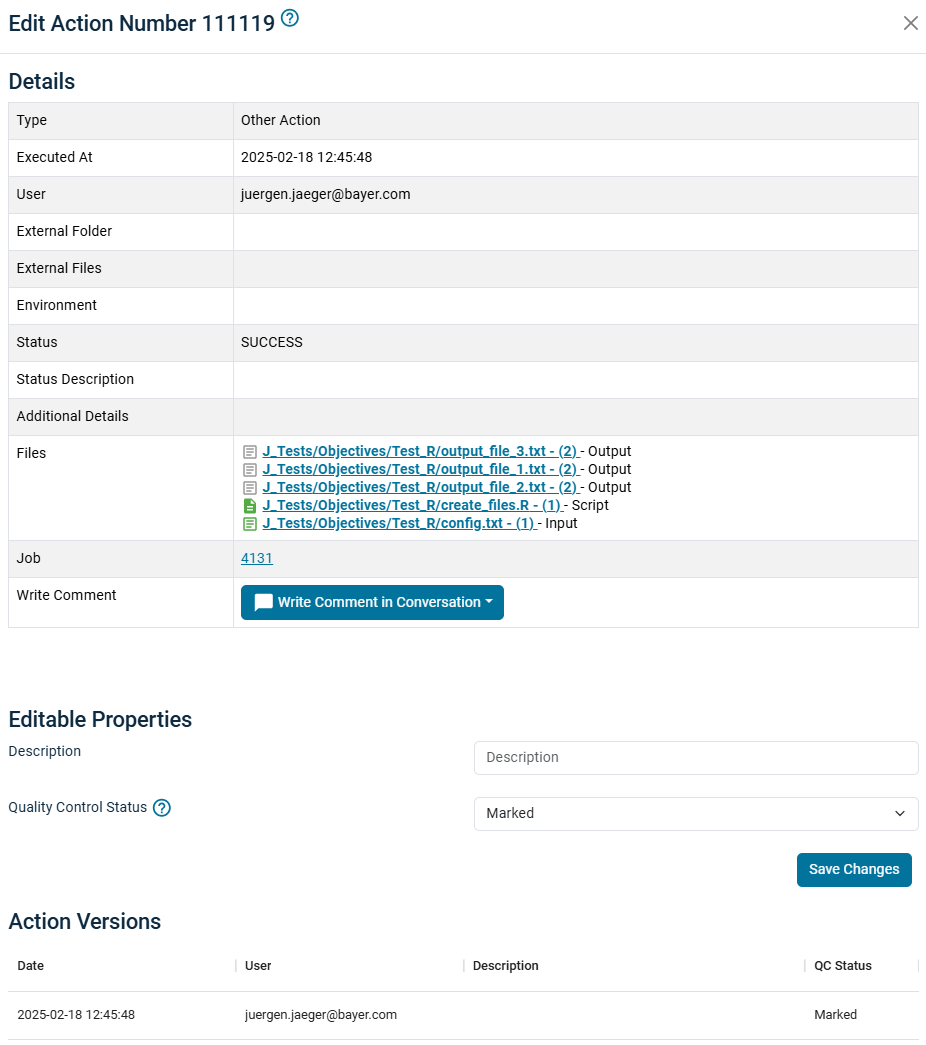
You can edit the Quality Control Status e.g. via the Creating Action entry in the file's context menu. You have to select the status, add a description (e.g., the reason why you changed the status), and click 'Save Changes'. All changes can be seen at the bottom of the window under Action Versions. As it is also noted by whom a change was performed, you can contact the corresponding person in case of questions.
Editing User Validity
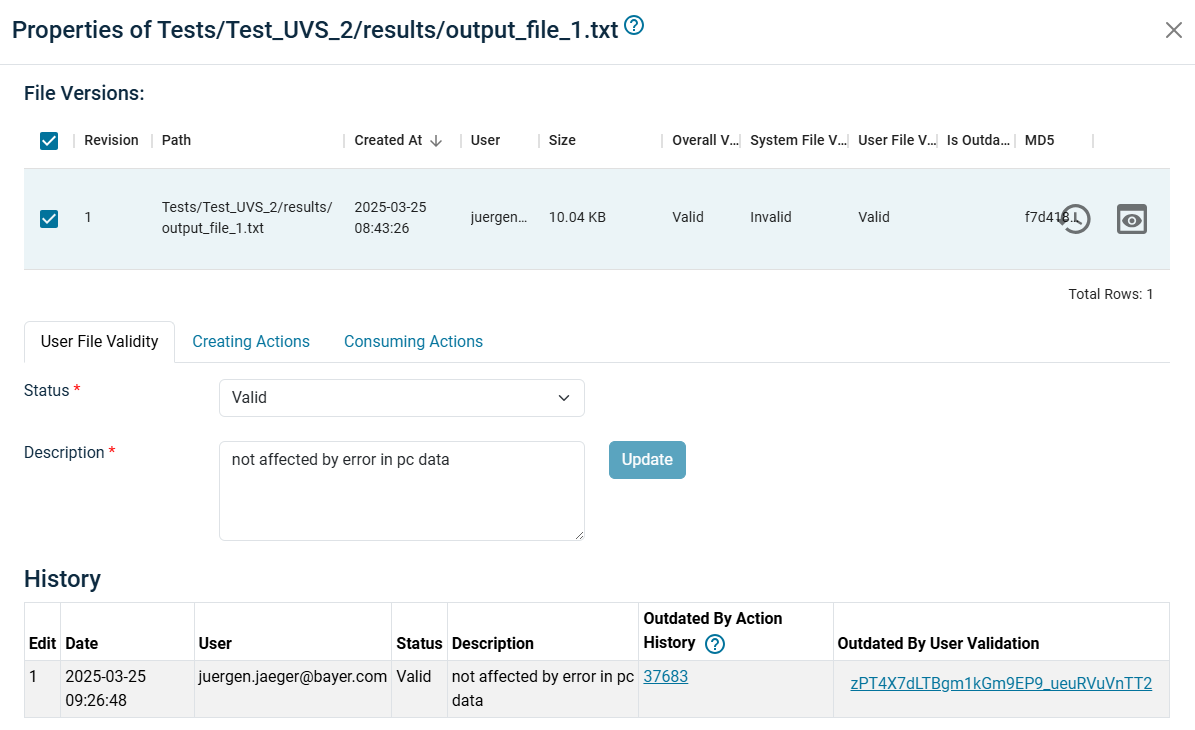
You can edit the User Validity of a file version via the File Properties entry in the file's context menu. You have to select the status, add a description (e.g., the reason why you changed the status), and click 'Save Changes'.
Then you need to confirm, that are aware of the consequences:
- File Validity Status of potentially all downstream documents changes
- You are in charge to track future upstream quality assessment changes and to revise and reenter the User Validity
Therefore you should edit the User Validity only in exceptional cases !
In particular User Validity should be used by external users only in alignment with MIDD partners.
If you have set the User Validity for a file explicitly to Valid or Invalid, then the file icon gets a small "User symbol": 
Of course you can reset the User Validity to Not set, which will reactivate the normal System Validity computation.
All changes can be seen in the Tab User File Validity under History. As it is also noted by whom a change was performed, you can contact the corresponding person in case of questions.
Outdated User Validity
Because any changes of some Quality Control Status or some User Validity upstream of a file with manually set User Validity may affect the user's manual validity assessment, this User Validity is considered to be outdated.
While you as user are responsible to keep track of such changes, PHIL supports you by a PHIL notification, which links to the affected file

and by displaying a purple warning triangle at the file icon in the File Explorer: 
You are obliged to redo the validity assessment in this case and to explicitly set the User Validity again - to the same or another Status value.
In any case you have to replace or extend the Description and Update the User Validity. After this, the warning triangle disappears.
In order to support you in the reassessment, in the corresponding history entry is displayed a link to the action or file version, which caused the outdating. Clicking this link a new browser tab is opened with its file properties or the action highlighted in the actions list, where you find information about that change. (In case of multiple changes upstream only the first change is displayed.)